Dashboard and queue
What do the dashboard and queue show me each day?
You start each day searching as your Digital Health Software Engineer profile. You want to know what is new, what is due and which jobs to look at next. The Dashboard answers the first two, and Next up puts the jobs you have not applied to in the order you care about.
Read the dashboard
In the sidebar, choose the profile under Searching as, then open Dashboard.
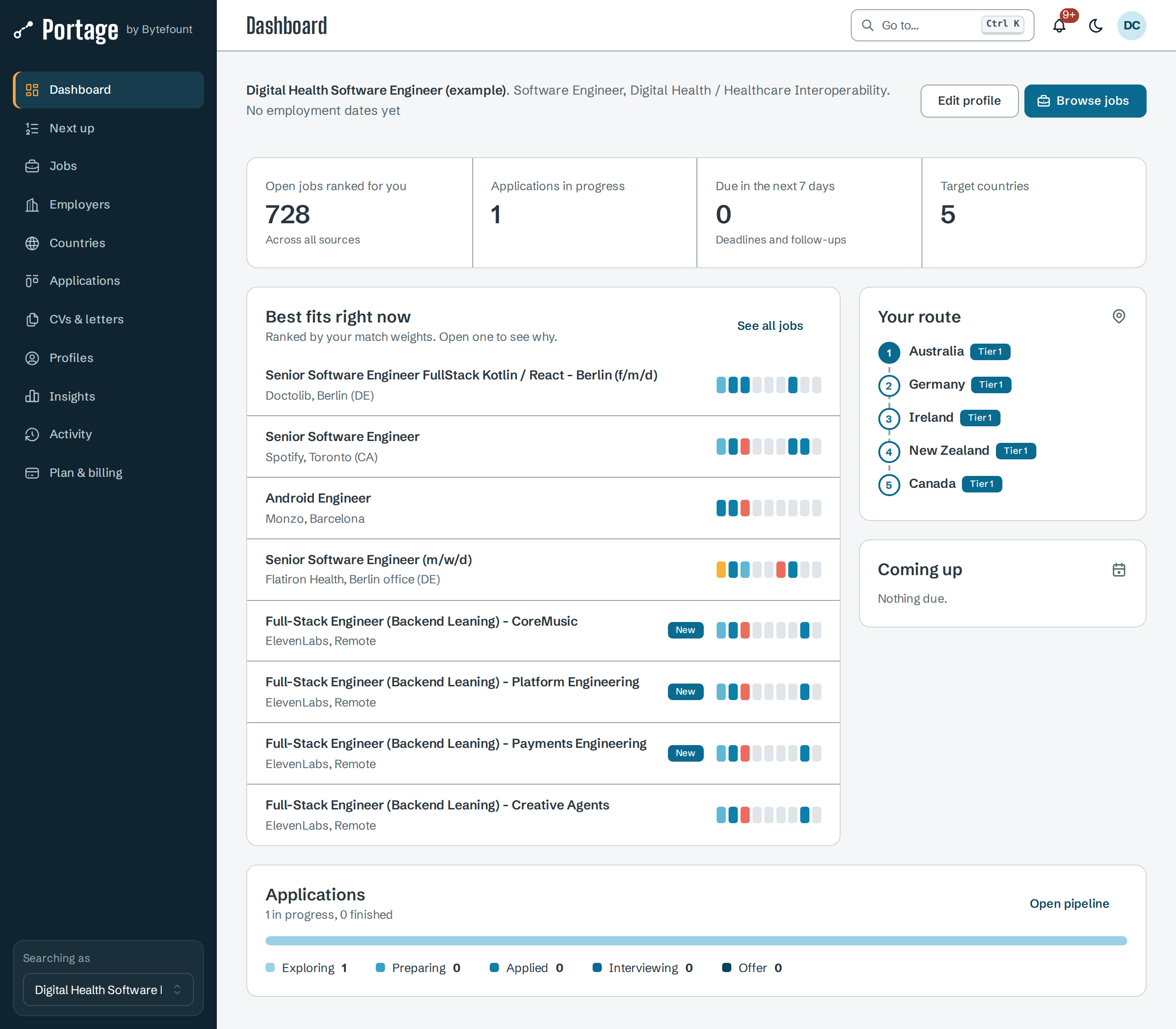
| Part | What it shows |
|---|---|
| Top row | Open jobs ranked for you across all sources, Applications in progress, Due in the next 7 days (deadlines, follow-ups and interviews) and Target countries |
| Best fits right now | The eight best-fitting open jobs, ranked by your match weights. Each row has a fit strip with one segment per dimension; hover over it for the levels. New marks a posting published, or first seen, in the last seven days. Select a row to open the job |
| Your route | Your target countries in priority order, with their tier. A paused country is greyed out |
| Coming up | The next six deadlines, follow-ups and interviews from your applications |
| Applications | How many applications are at each stage, from Exploring to Offer. Open pipeline opens the tracker |
Edit profile opens the profile, and Browse jobs opens Jobs.
Work through Next up
Open Next up in the sidebar. It lists open jobs you have not applied to yet, including jobs you are tracking but have not reached Applied with.
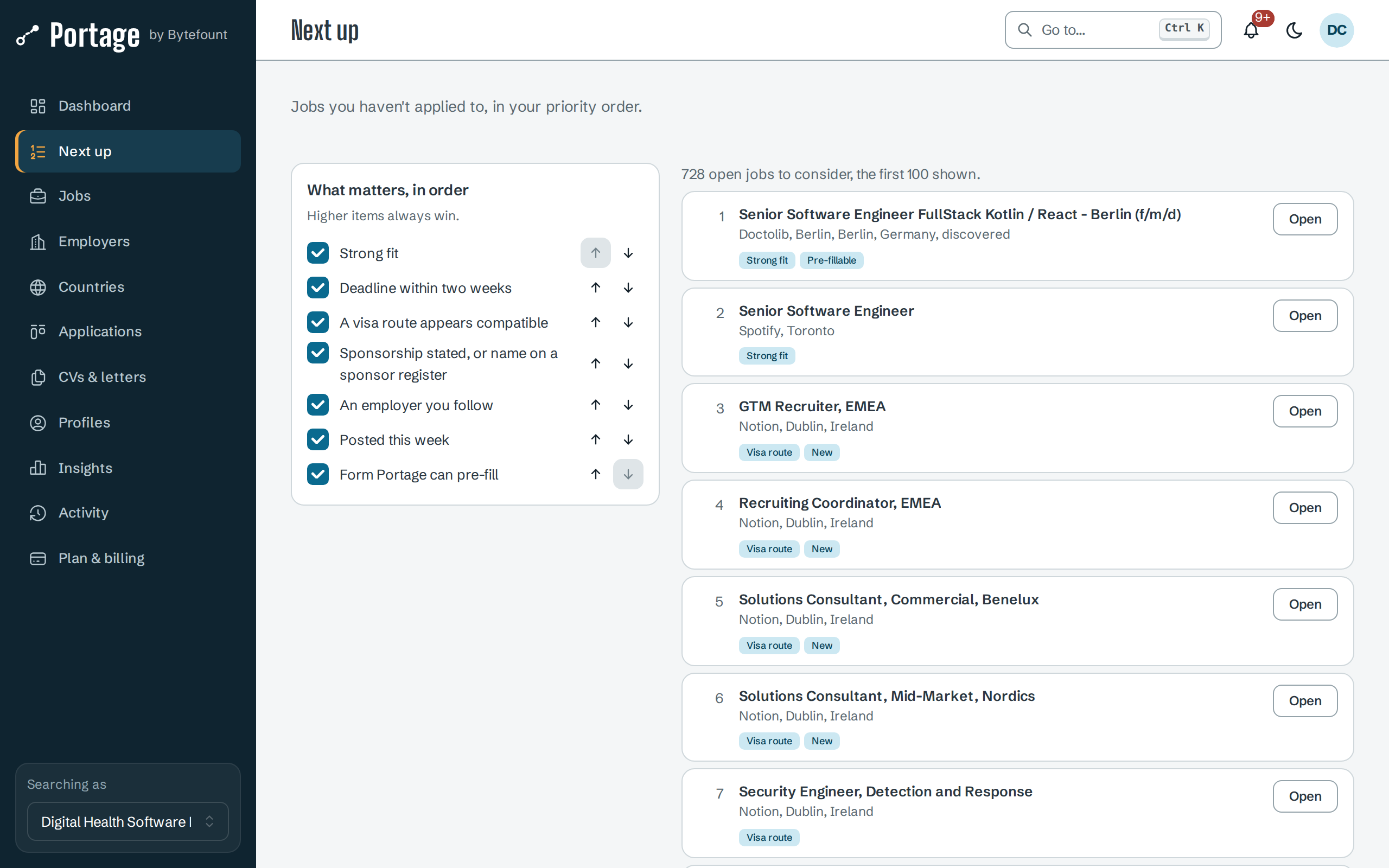
The list shows the first 100 jobs, numbered in order. Under each job, the tags say which of your factors it meets, such as Strong fit, Visa route or Pre-fillable. Select Open to see the job.
To change the order, reorder What matters, in order on the left. See Rank your queue.
Next
- Rank your queue to choose what comes first
- How fit is explained to read the fit strip
- Track applications for deadlines and interviews