Track applications
How do I track applications, interviews and notes?
You are searching as your Digital Health Software Engineer profile. A friend passed on an Interoperability Engineer role at Harbour Health, which you applied for on their careers site, and they have booked a technical interview. You want it in the same place as the jobs you found in Portage, with what you did and when.
Start tracking
There are two ways to add an application to the active profile:
- For a job in Portage, open it and select Track application. The button then reads Tracked.
- For a job found elsewhere, open Applications, select Add application, and enter the Job title and Employer. Application URL and Deadline are optional. Select Add application.
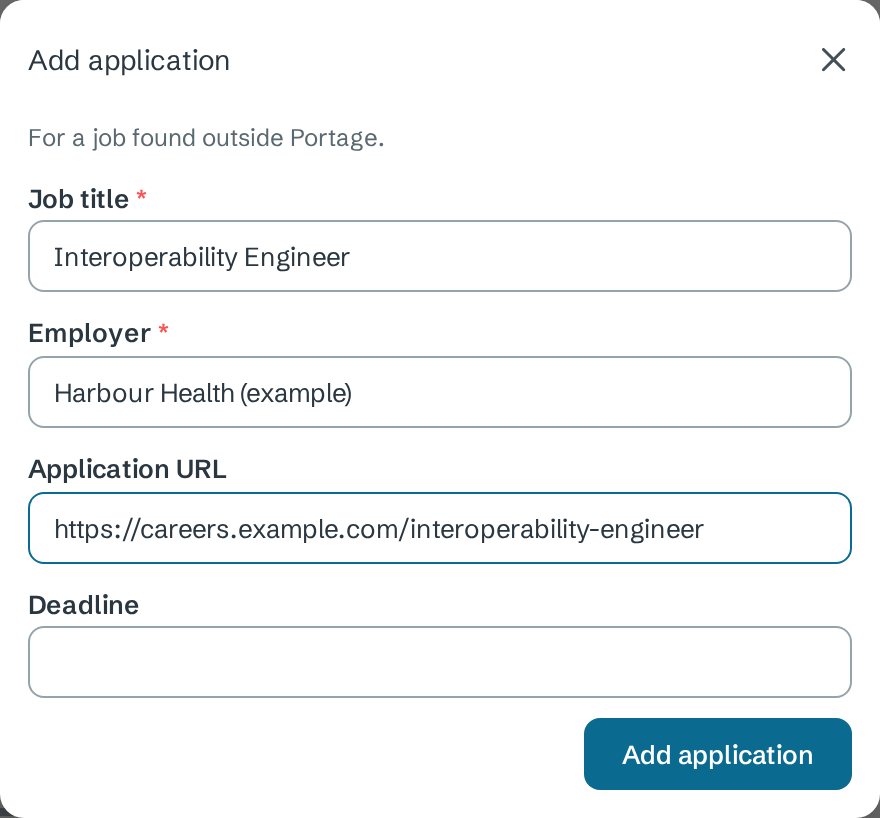
A new application starts as Discovered.
Move it along
- Open the application's card on Applications.
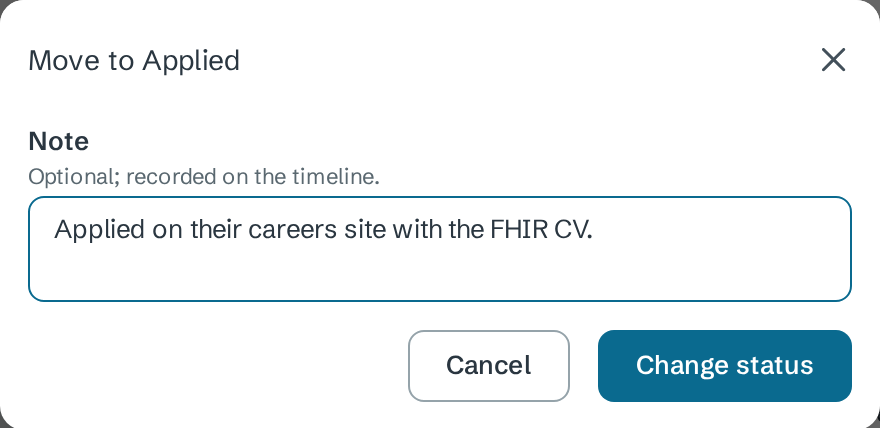
- Under Status, choose the new status, here Applied.
- Optionally add a Note. It is recorded on the timeline.
- Select Change status.
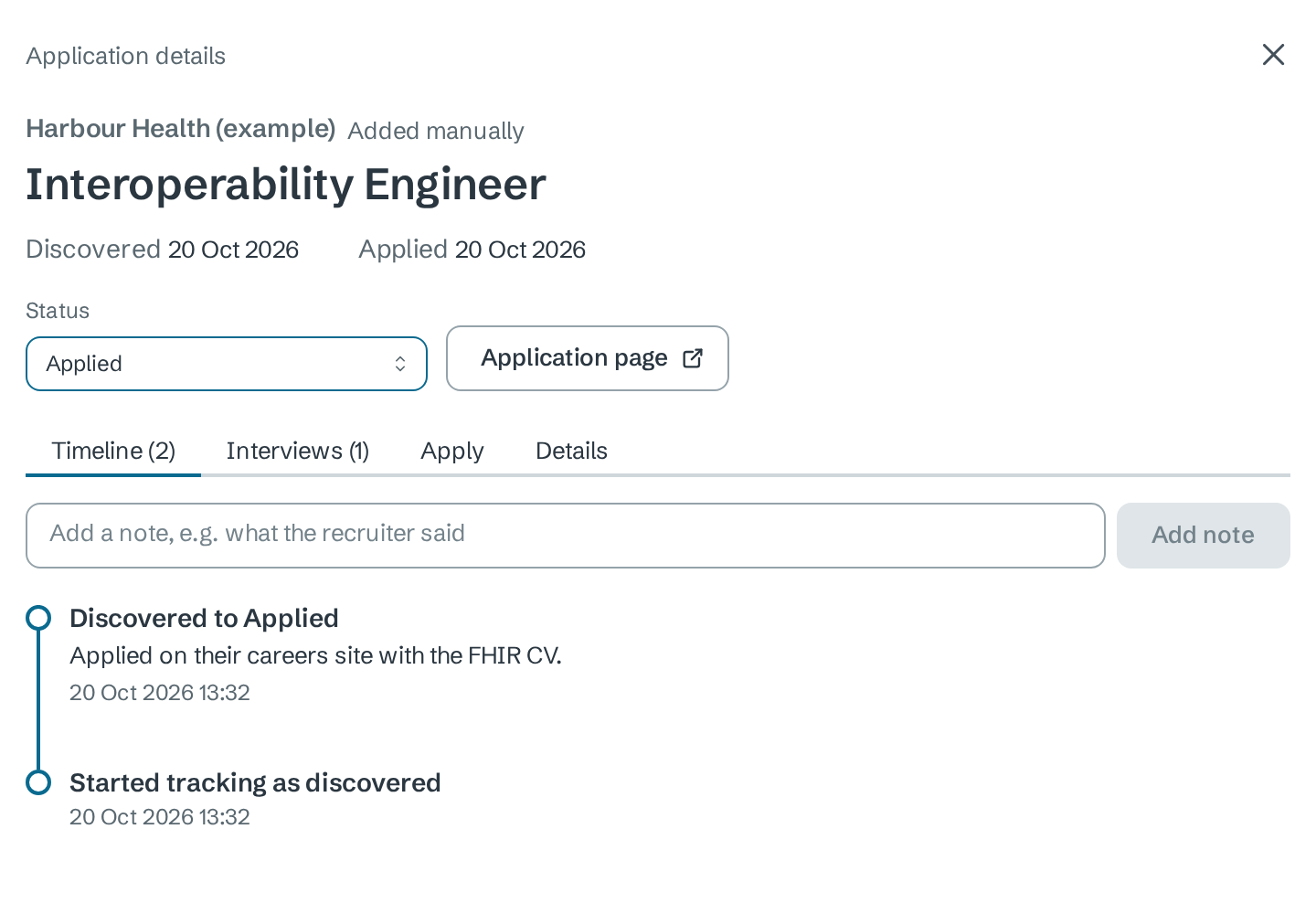
The Timeline tab lists every status change and note, newest first, with the date and time. To add a note without changing status, type in the box at the top and select Add note.
Record interviews
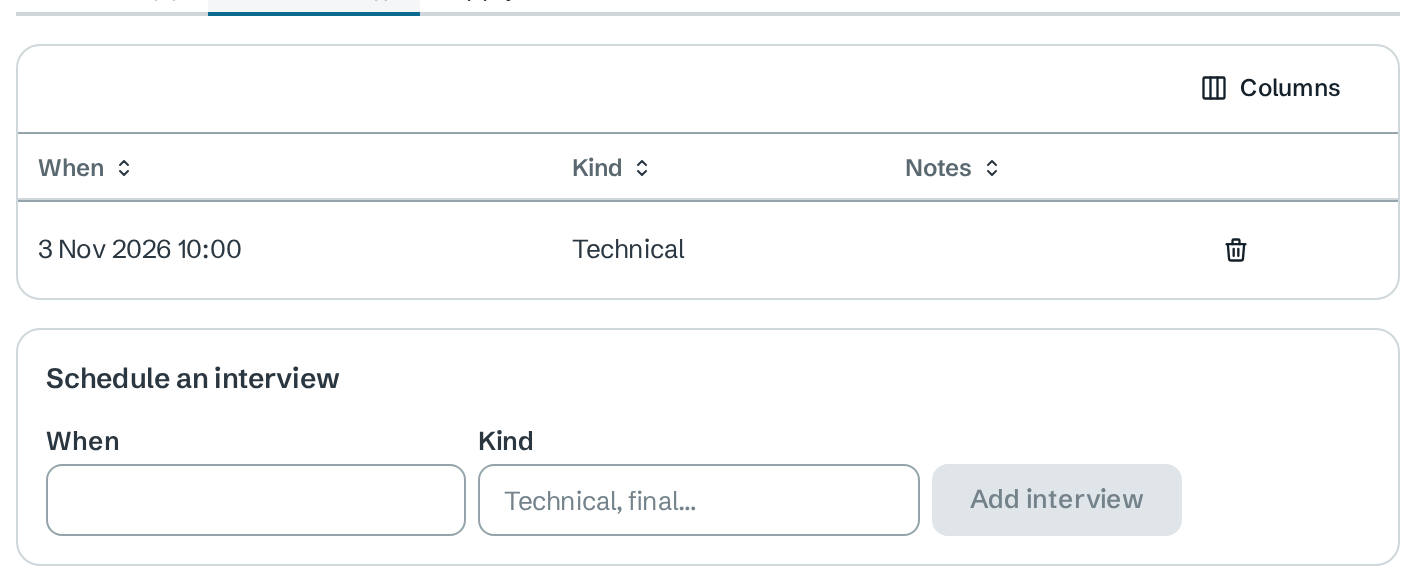
On the Interviews tab, under Schedule an interview, choose When, optionally enter the Kind, and select Add interview. Interviews appear in the table, and the next one shows under Coming up on the dashboard. Select the bin icon to delete one.
The Details tab holds the rest: Deadline, Follow up on, Recruiter, Contact, the CV sent, Next action, Rejection reason, Outcome and Notes. Select Save application after changing them. Deadlines and follow-ups also appear on the card and under Coming up.
See the pipeline
Applications groups your cards into stages. Each column lists the statuses it holds.
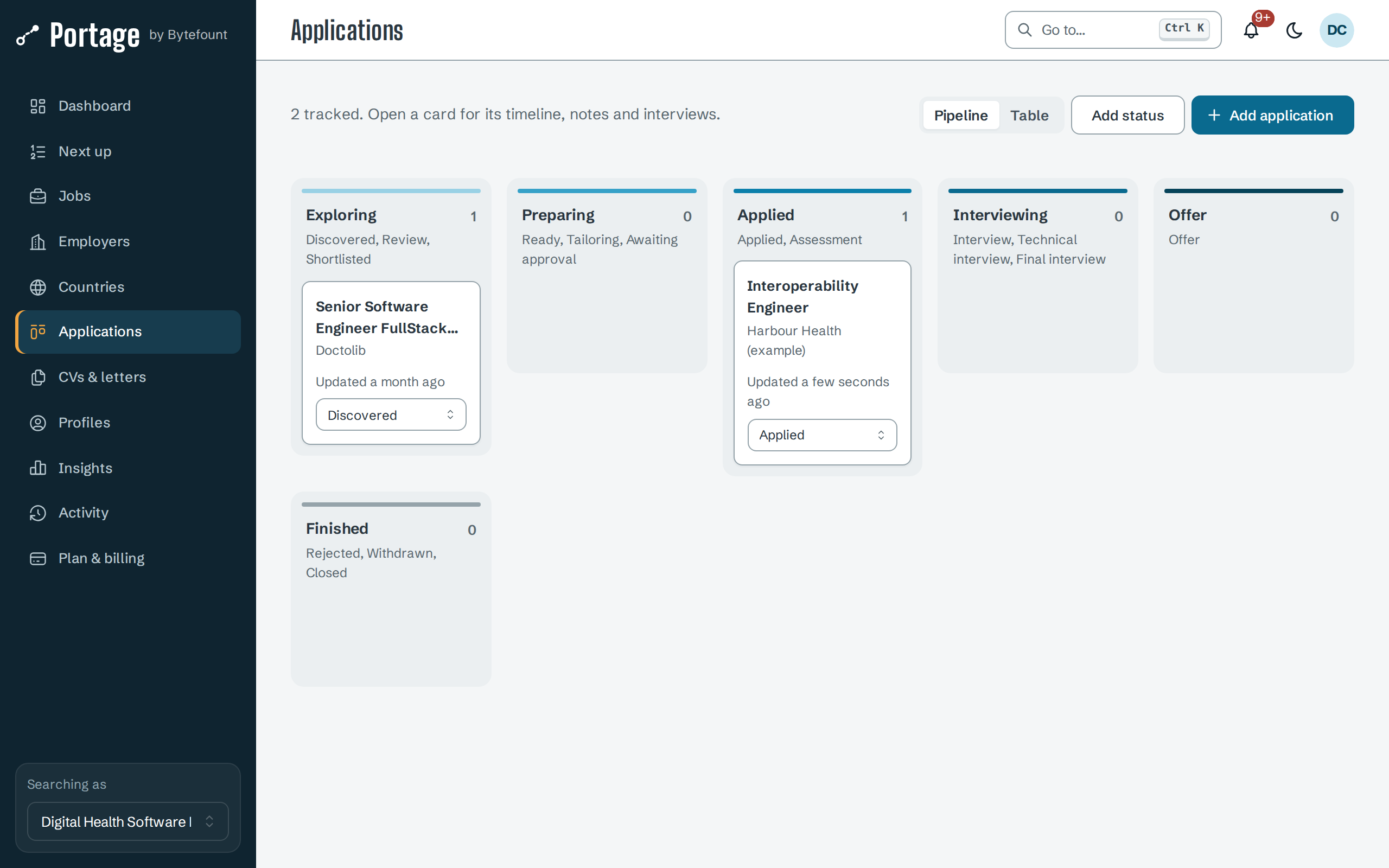
| Stage | Statuses |
|---|---|
| Exploring | Discovered, Review, Shortlisted |
| Preparing | Ready, Tailoring, Awaiting approval |
| Applied | Applied, Assessment |
| Interviewing | Interview, Technical interview, Final interview |
| Offer | Offer |
| Finished | Rejected, Withdrawn, Closed |
You can change a status from the card itself. Table shows the same applications as a sortable list. Add status adds a status of your own, with a Label and a Key in UPPER_SNAKE_CASE; applications with your statuses sit in a Your statuses column.
Next
- CVs and approved answers to record the CV you sent
- Auto-fill employer forms from the Apply tab
- Dashboard and queue for what is coming up