Search and filters
How do I use boolean search and filter by sponsorship, visa route, city, language?
You are searching as your Digital Health Software Engineer profile and want engineering roles that mention FHIR or HL7. You also want to see only jobs whose employer sponsors visas, and to hear when new ones appear. Jobs combines a Boolean search with filters, and saves the combination as a search you can come back to.
Search with AND, OR and NOT
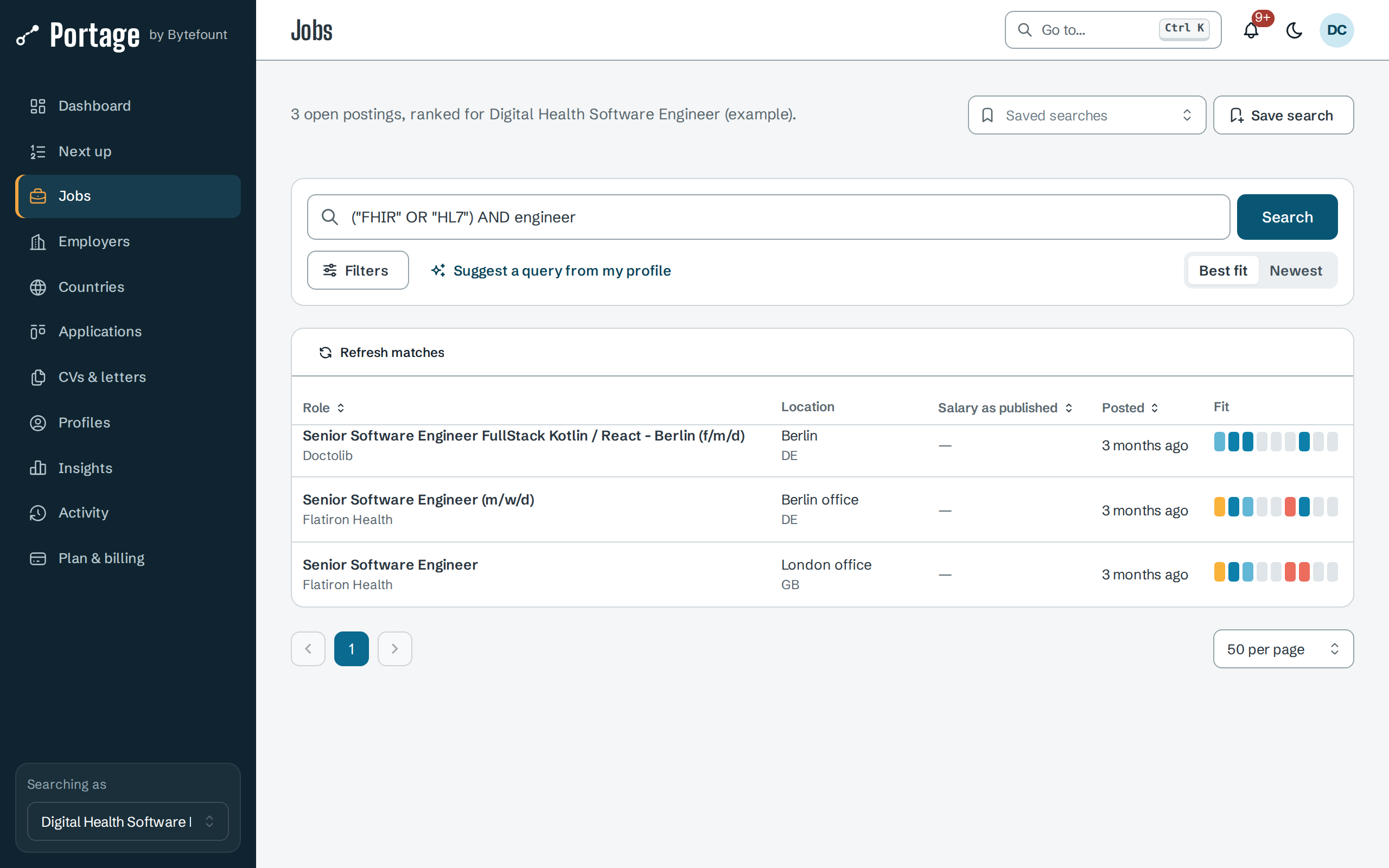
- In the sidebar, open Jobs. The heading says how many open postings are ranked for the active profile.
- Type a query in the search box and select Search, or press Enter.
| You type | Portage finds postings with |
|---|---|
FHIR | the word FHIR |
Kotlin Go | both words. Words side by side mean AND |
FHIR OR HL7 | either word |
Kotlin AND NOT Java | Kotlin but not Java |
"Software Engineer" | the exact phrase |
("FHIR" OR "HL7") AND engineer | FHIR or HL7, and engineer. Brackets group terms |
AND, OR and NOT work in any case. Portage searches each posting's title, location and
description, and matches different forms of a word, such as engineer and engineers, in the
posting's language. Punctuation is ignored, so node.js searches for node followed by js.
A query with an unclosed bracket or quote, or an operator with nothing after it, such as
FHIR OR, is refused with an error and no results.
Suggest a query from my profile fills the search box with a query built from your target roles, your skills and your preferred domains. Edit it, then select Search.
Filter the results
Select Filters to open the filter panel. Choose values, then select Apply filters.
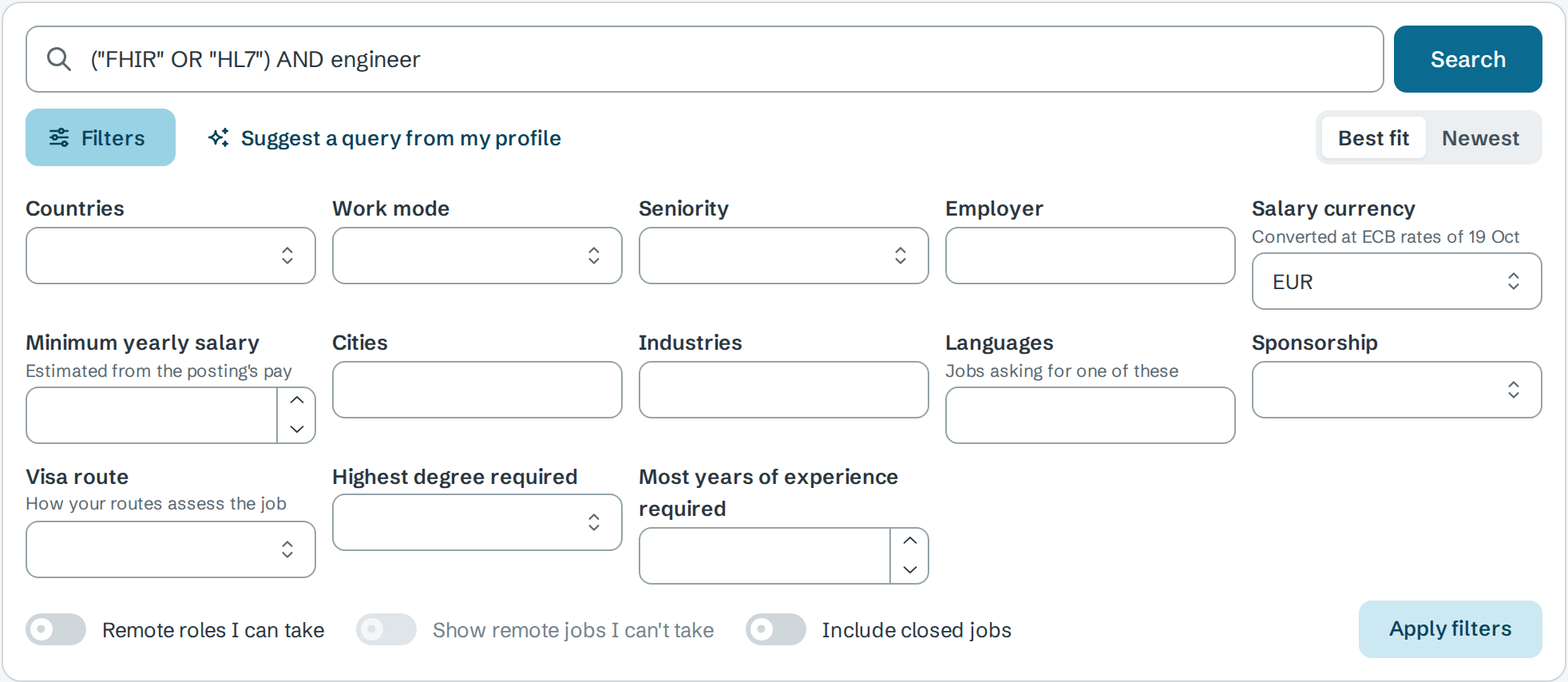
| Filter | What it keeps |
|---|---|
| Countries | Jobs in any of the chosen countries, including postings that list the country as one of several places |
| Cities | Jobs in a city with exactly that name. Type a city and press Enter |
| Languages | Jobs asking for one of the languages you enter |
| Sponsorship | Jobs whose posting says this about visas: Sponsors visas, Relocation support, Fits a route, Unclear, Needs existing right to work, No sponsorship or Not stated |
| Visa route | Jobs your profile's visa routes assess this way, such as Appears compatible or A requirement isn't met |
| Highest degree required | Drops jobs that ask for a higher degree than you choose |
| Most years of experience required | Drops jobs that ask for more years than you enter |
| Remote roles I can take | Adds remote jobs open to where you can work. Show remote jobs I can't take keeps the others too |
| Include closed jobs | Postings that have closed, which are hidden otherwise |
The salary filters are explained in Pay estimates.
Each applied filter shows as a chip under the search box. Select the cross on a chip to remove it, or Clear all to remove every filter. Best fit and Newest change the order; you can also sort by the Role, Salary as published or Posted column.
Save the search
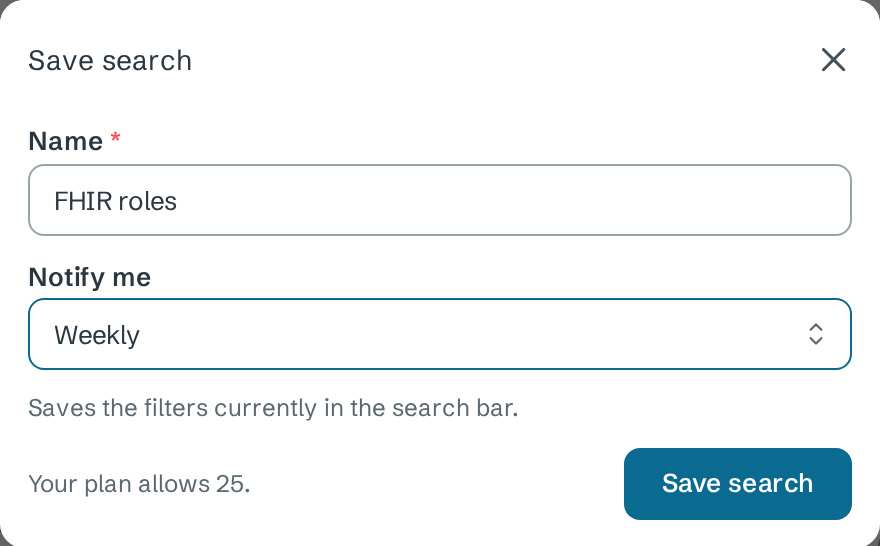
- Select Save search.
- Enter a Name, such as FHIR roles.
- Under Notify me, choose Off, Immediate, Daily or Weekly.
- Select Save search. It saves the query and filters currently applied.
Saved searches belong to the profile. Choose one from Saved searches at the top of the page to run it again. While one is selected, the Saved search menu offers Update with current filters, Save as new and Delete.
The dialog shows how many saved searches your plan allows for each profile. A saved search over the limit after a plan change is listed with (paused: over plan).
Next
- Pay estimates to filter by yearly pay
- Add a job or follow an employer for jobs Portage has not found
- Notifications for saved-search alerts