Add a job or follow an employer
How do I add a job Portage hasn't found, or follow an employer?
You are searching as your Digital Health Software Engineer profile. Komodo Health is an employer you want to watch, and a recruiter has sent you a posting that is not on any board Portage reads. Follow the employer so its openings join your jobs, and paste the posting so Portage can rank and check it like any other.
Follow an employer
- In the sidebar, open Employers, then select Follow an employer.
- Enter the Employer name. Add its Website to help Portage find the right board.
- If you know it, paste a Job board link from the employer's careers page, such as jobs.lever.co/acme. It must start with http:// or https://.
- Select Follow.
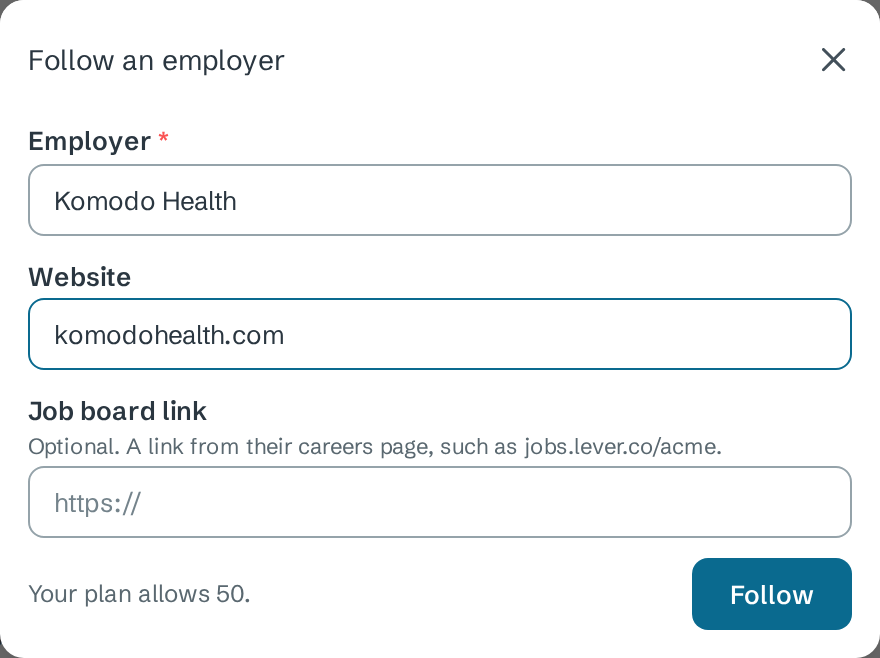
The employer is listed as Checking while Portage looks for its job board. Portage reads boards hosted on Greenhouse, Lever, Ashby, Workable, SmartRecruiters, Personio, Teamtailor and Recruitee.
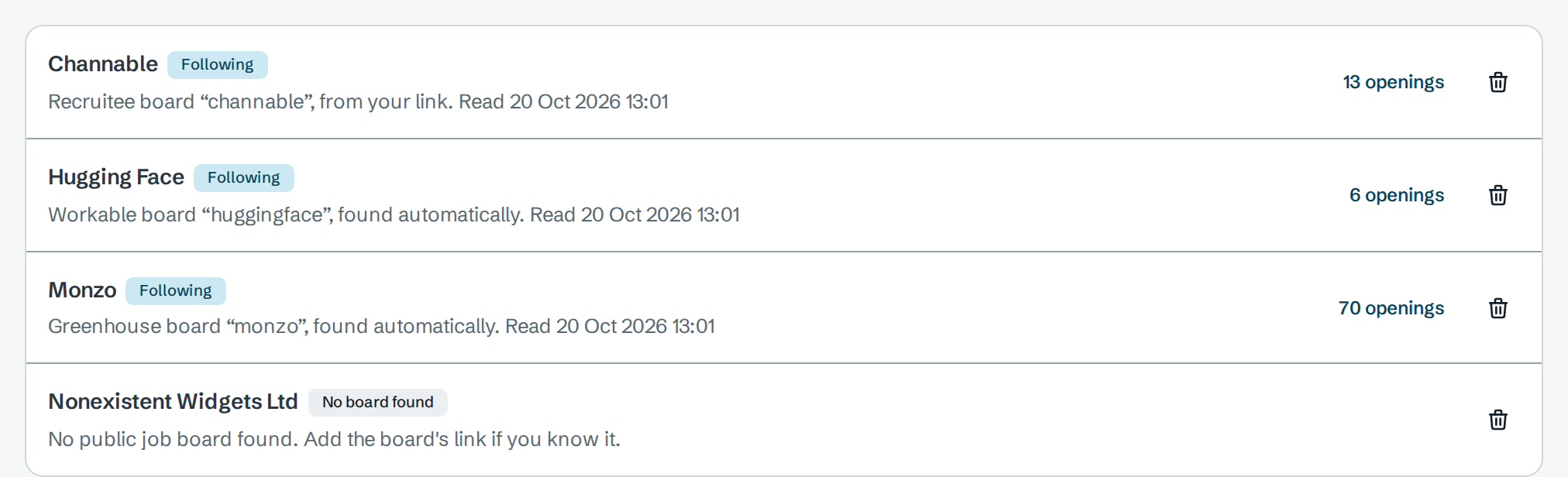
| Status | Meaning |
|---|---|
| Following | Portage found the board. The line under the name says which board, how it was found and when it was last read. The openings button opens Jobs filtered to this employer |
| Checking | Portage is still looking for the board |
| No board found | No public board was found. Follow again with the board's link if you know it |
Portage reads followed boards every hour, and new openings appear in Jobs for the profile. To stop, select the bin icon beside the employer and confirm.
Followed employers belong to the profile. The dialog shows how many your plan allows. One over the limit after a plan change shows Paused: over plan and is not read until you upgrade.
Paste a job
Paste a job is on the Jobs page when AI assistance is available in your workspace.
- On Jobs, select Paste a job.
- Paste the whole posting under Posting. It needs at least a few sentences, or Portage asks you to "Paste the full posting (at least a few sentences)".
- Optionally add the Link to apply. It must start with http:// or https://.
- Select Read posting. Reading uses one AI action from your plan's monthly allowance.
Portage shows Reading the posting…, then opens the new job's details. The job is private to your workspace. If reading fails, the dialog shows why and keeps what you pasted.
A job found elsewhere
To track an application for a job you will not search for in Portage, add it straight to the tracker with Add application. See Track applications.
Next
- Search and filters to find the new openings
- Sponsor registers to check whether an employer can sponsor
- Plans and trial for follow and AI allowances