Notifications
Which notifications will I get, and how do I change them?
You follow Monzo from your Data Scientist profile and have a Skilled Worker visa in mind. You want to hear when Monzo says something about sponsorship and when the UK rules change, but you don't want an email for every new job. Portage collects these notices in one list and emails each member only as often as they choose.
Read your notifications
Select the bell at the top right. A number on it counts notices you have not read yet.
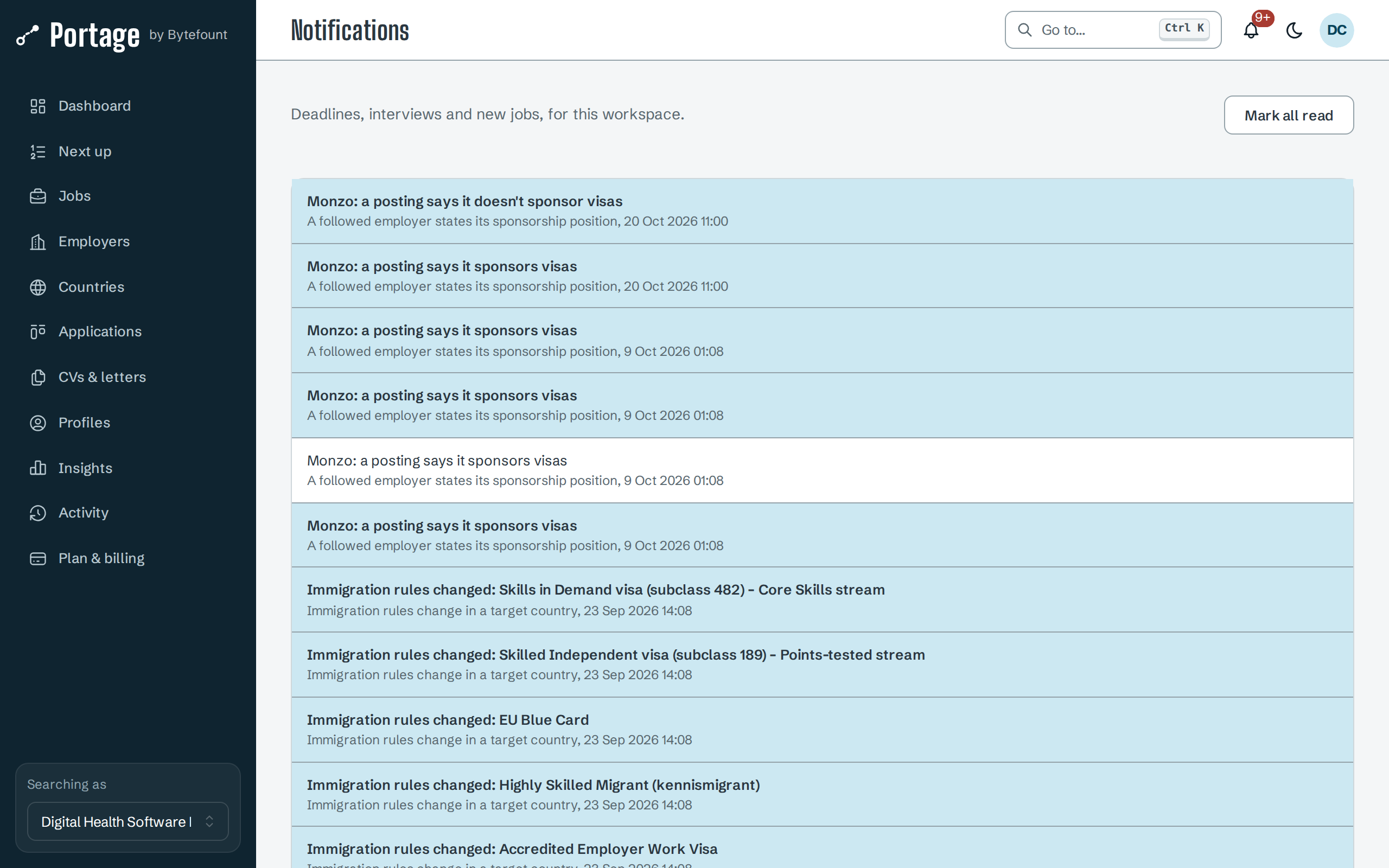
Unread notices are highlighted. Select one to open what it is about; that marks it read. Mark all read clears the rest. Read state is your own: another member reading a notice does not mark it read for you.
The list covers every profile in the workspace and shows the latest 100 notices. It leaves out notices about changes you made yourself.
What you are notified about
Portage looks for new notices every hour.
| Notice | When it appears | Email by default |
|---|---|---|
| New jobs for a saved search | A saved search with alerts on finds jobs first seen since its last alert | Daily |
| Application deadlines | An open application's deadline is within 3 days | At once |
| Follow-ups due | An application's follow-up date has arrived, for up to 7 days | At once |
| Upcoming interviews | An interview is within the next 26 hours | At once |
| A tracked posting closes | A posting you track, but have not applied to yet, closes | Daily |
| Someone else moves an application | Another member changes an application's status | Daily |
| Immigration rules change in a target country | Portage saves a new version of a route in one of the profile's target countries | Weekly |
| A followed employer states its sponsorship position | A posting from an employer you follow says whether it sponsors visas | Weekly |
| A visa or permit in a profile ends within 90, 30 or 7 days | A permit on the profile ends within 90 days, again at 30 and at 7 | At once |
| The browser stopped an application and needs you to finish it | Auto-fill stopped and needs you to finish the form | At once |
A saved search's first alert only sets a starting point, so turning alerts on does not send you every job it already finds. Each saved search sets its own alert frequency on the Jobs page.
Choose what is emailed
Any member can change their own email settings, whatever their role. They affect nobody else.
- Open Notifications and scroll to Email. The line under it shows the address emails go to.
- For each kind of notice, choose At once, Daily, Weekly or Off.
- Turn on Name jobs and employers in emails if you want the details in the email. It is off by default, so a lock-screen preview reveals nothing.
- Select Save email settings.
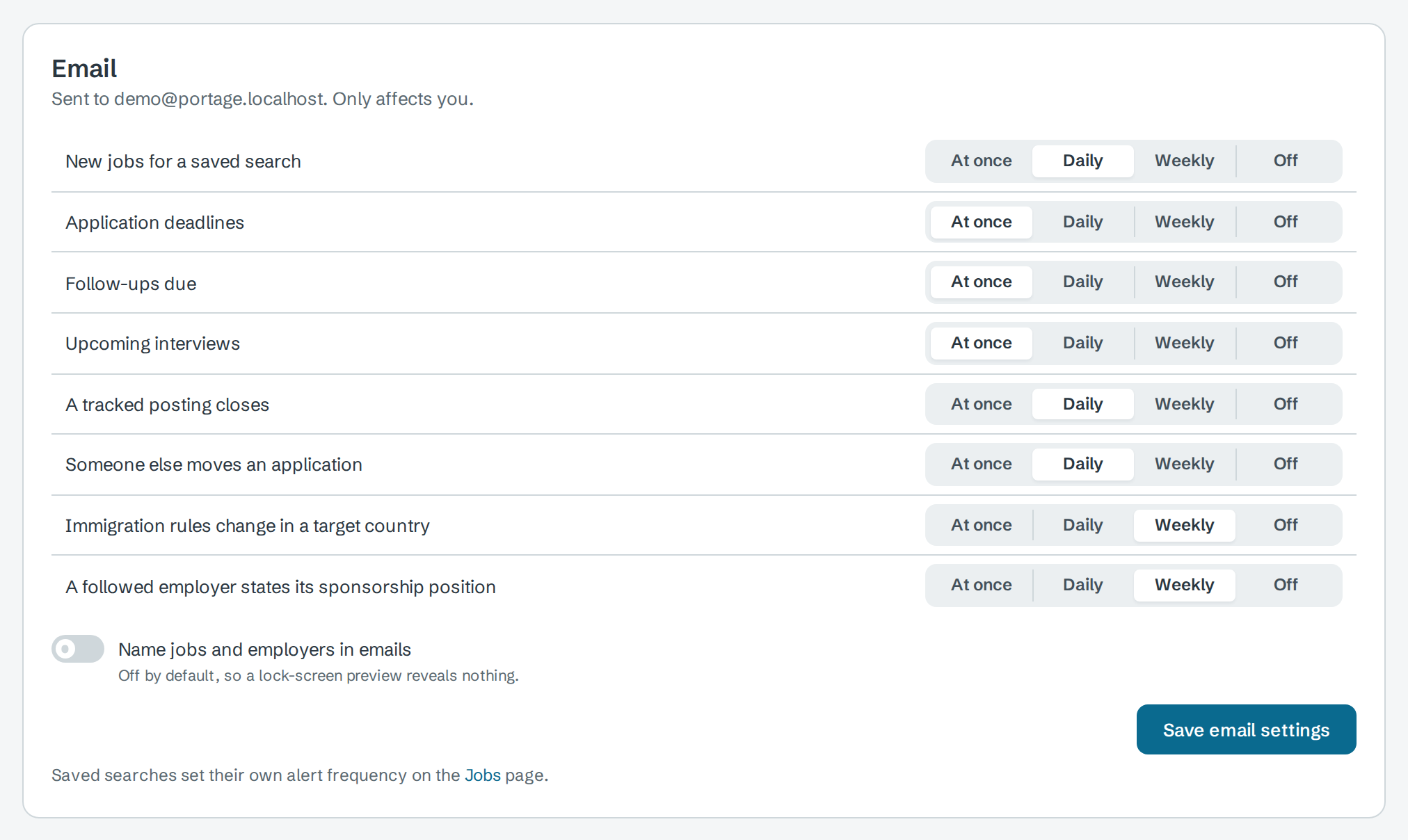
Off stops the email only. The notice still appears in the list. Daily and Weekly collect notices into one email a day or a week. Without details, an email only counts updates by kind, such as "2 deadlines", with a link back to Portage.
Permit and auto-fill notices are not in the Email list. They are always emailed at once.
If your account has no email address, the section says nothing is emailed. If the server has no email set up, it says so, and notices still appear in the list.
Next
- When a rule changes for what a rule-change notice means
- Search and filters to save a search with alerts
- Track applications to set deadlines and follow-ups