Auto-fill employer forms
What does form filling do, and what will it never do without me?
You are searching as your Digital Health Software Engineer profile and are tracking Doctolib's Senior Software Engineer role in Berlin. Its application form is on Greenhouse. Portage can read that form, show what it would put in every field and why, and fill it for you. It sends nothing until you have read every answer and approved exactly those values.
Read the form
- Open Applications and select the application's card.
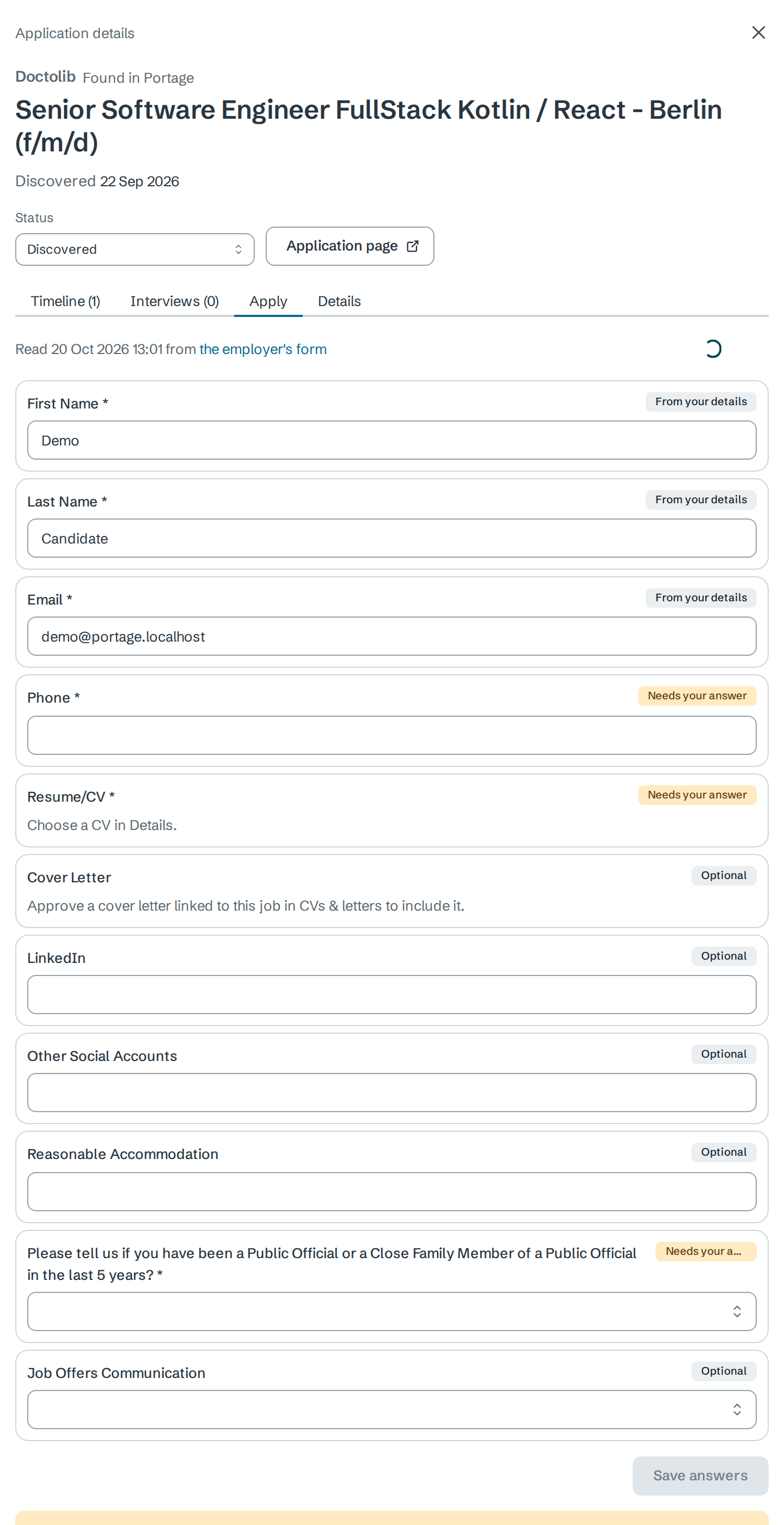
- Select the Apply tab, then Read the application form.
Portage reads the questions the employer publishes on Greenhouse. Form filling works only for jobs Portage found on a Greenhouse board; for any other job it says "Form filling works for Greenhouse jobs only."
Check every answer
Each field shows the value Portage would enter and where it came from.
| Badge | Where the value comes from |
|---|---|
| Approved material | An approved CV, cover letter or answer in CVs & letters |
| Your answer | An answer you approved earlier, from your library |
| From your details | Your name, email or phone |
| Needs your answer | A required question Portage has no approved value for |
| Optional | A question the employer does not require, left empty |
File fields say what Portage will attach. For the CV, choose one under CV sent on the Details tab. A cover letter is included only if you approved one linked to this job in CVs & letters. Other files you add on the employer's form yourself.
To answer or change a field, type in it and select Save answers. Portage keeps what you typed in your answer library as approved, so the next form can reuse it. Select Read it again if the employer changes the form.
While any required question is unanswered, Portage lists them and offers nothing else.

Approve and send
Once every required question has an answer:
- Tick "I've read every answer above. Portage may put exactly these into Doctolib's form." You cannot tick it while you have unsaved changes.
- Select Fill without submitting to have Portage fill the form and stop, or Approve and submit to fill it and send it.
Portage's browser opens the employer's form and fills exactly the approved values. If the answers changed after you read them, Portage refuses and asks you to read them again.
Under Browser runs, each run shows its steps and status:
| Status | Meaning |
|---|---|
| Waiting for the browser / Filling the form | The run is queued or in progress |
| Filled, not submitted | Every approved value was filled, and the form was not sent |
| Submitted | The employer's confirmation appeared. Portage quotes it |
| Needs you | Portage stopped and handed the form back to you, with the reason |
| Failed | Something went wrong. The reason says what |
View screenshot shows the form as Portage left it. After a run is Submitted, Approve and submit stays off for that application.
What Portage never does
- It never submits without your approval of the exact values shown.
- It never answers a question you have not approved an answer for.
- It never gets past a CAPTCHA or a sign-in page. It stops with Needs you: "The form shows a CAPTCHA. Open the form and finish it yourself."
- It never guesses. If the form has no field for a required answer, or a field does not keep the approved value, it stops.
- It never retries a submission. If no confirmation appears, it says "No confirmation appeared. Check your email before trying again."
Next
- CVs and approved answers to build your answer library
- Track applications to move the application to Applied
- Rank your queue to put pre-fillable jobs first