CVs and approved answers
How do I keep CVs, cover letters and approved answers?
You are searching as your Digital Health Software Engineer profile. Every application form asks for your notice period, and you want to write the answer once, check it, and let Portage reuse it. CVs & letters keeps your CVs, cover letters, reusable answers and files for each profile, and Portage uses none of them until you approve it.
What is kept where
In the sidebar, open CVs & letters.
| Tab | Holds |
|---|---|
| CVs | One CV per direction, each with its target role and country, and optionally an uploaded file |
| Answers | Reusable answers to form questions. Only approved ones fill forms |
| Cover letters | Letters for specific jobs, drafted from a job or written yourself |
| Files | Uploaded PDF, Word or text files |
Write an answer
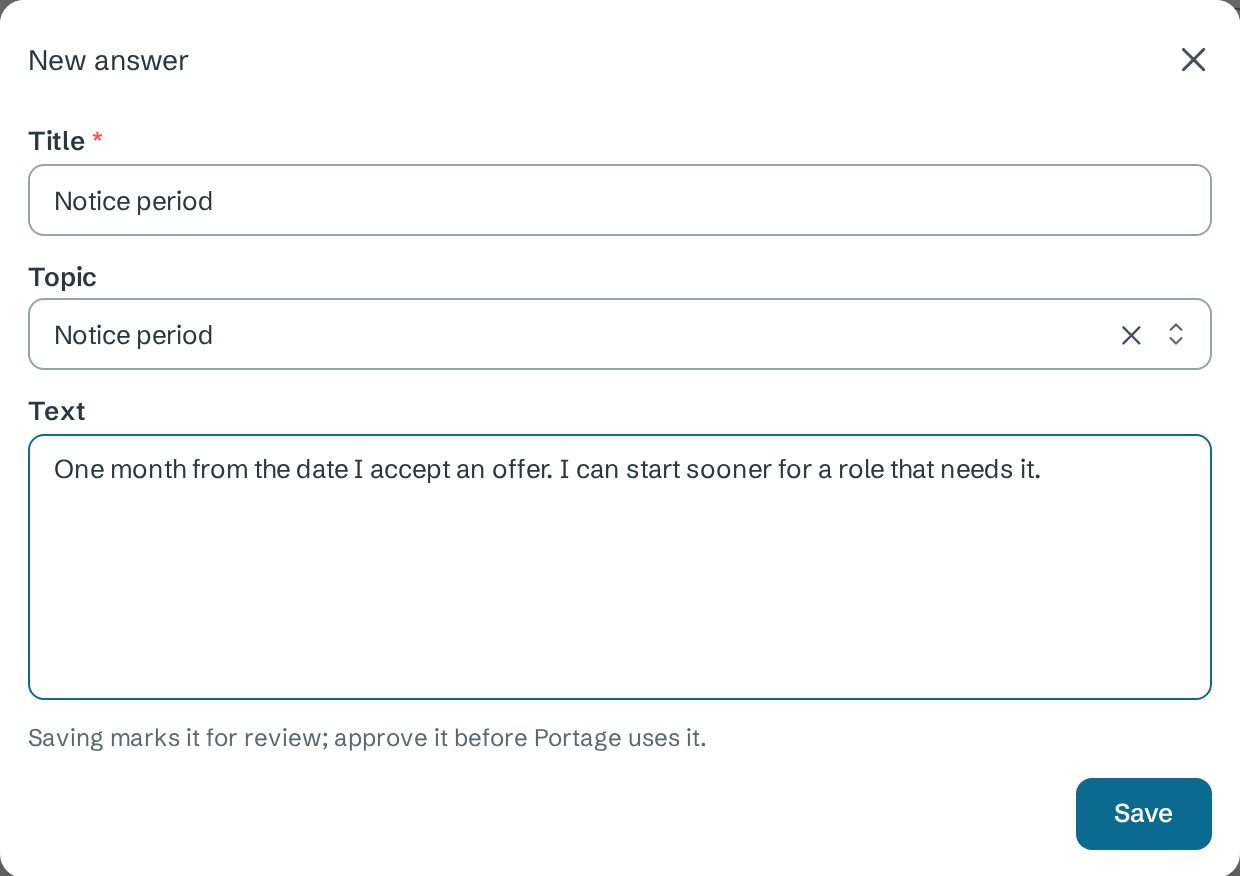
- Open Answers and select New answer.
- Enter a Title, such as Notice period.
- Optionally choose a Topic, such as Notice period, Sponsorship explanation or Salary expectation.
- Write the answer under Text and select Save.
Approve it
A saved answer is marked Needs approval. Read it, then select Approve.

The badge changes to Approved, and Portage can now use the answer to fill forms.
| Badge | Meaning |
|---|---|
| AI draft, needs review | Written by AI from your profile. Approve it before it is used |
| Needs approval | Saved by you, not yet approved |
| Approved | Ready to use |
Change or retire it
Select … beside an item:
- Edit as new version saves your changes as the next version, which needs approval again.
- Version history shows every version with when it was saved and approved.
- Archive removes it from the list.
CVs and cover letters
Select New CV and enter a Title, Target role and Target country. To attach a document, upload it under Files first, then choose it under File. Approve it as above. In an application's Details, CV sent lists your CVs.
Select New cover letter to write one, and choose the job under For job. The list holds the jobs you are tracking. A job's apply form uses the approved letter linked to it.
When AI assistance is turned on, Draft cover letter in a job's details writes a letter from your profile's entries only. It arrives as AI draft, needs review, with What each sentence is based on under it.
Upload a file
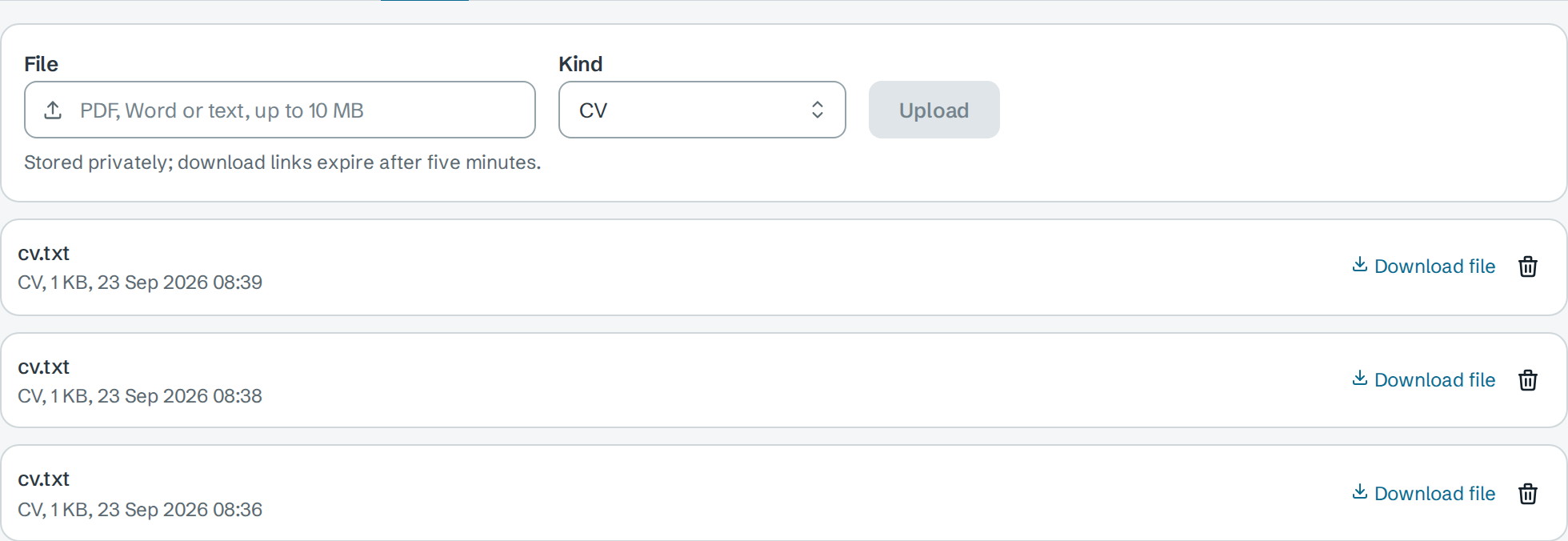
On Files, choose a File and its Kind, then select Upload. Files can be PDF, Word or text, up to 10 MB. They are stored privately, and download links expire after five minutes.
Next
- Auto-fill employer forms to use your approved answers
- Track applications to record which CV you sent
- Sign up and build your profile for the facts drafts use