Delete your workspace
How do I delete my workspace, and what is removed?
You have taken the job, moved, and no longer need Portage. You want Portage demo and everything in it gone for good. Deleting the workspace removes all of it, along with the accounts that sign in to it. It cannot be undone, so export your data first if you want a copy.
Delete the workspace
Only the workspace's owner can do this. Other members don't see the button.
- In the sidebar, open Plan & billing.
- Under Your data, select Delete workspace.
- Under Type Portage demo to confirm, type the workspace's name exactly as shown.
- Select Delete workspace. The button stays disabled until the name matches.
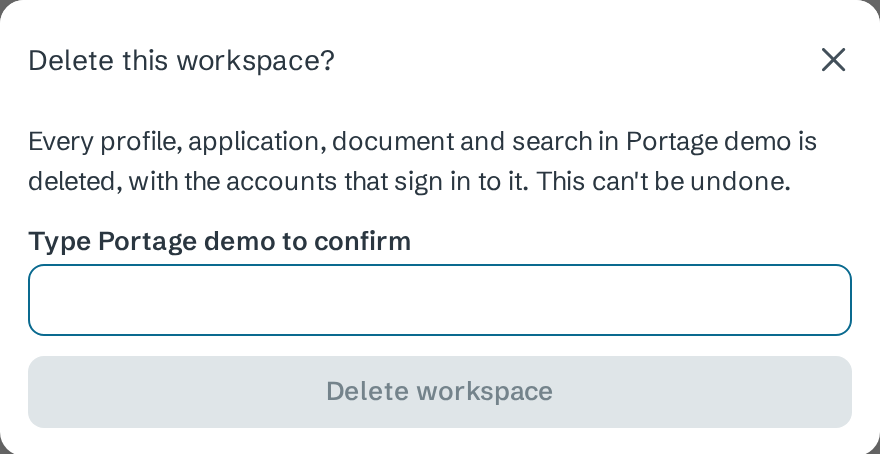
To stop without deleting anything, close the dialog with the cross.
When the deletion finishes, Portage signs you out.
What is removed
In this order:
- Any paid plan is cancelled, so the workspace is never charged again. You don't need to cancel it first.
- Every record in the workspace is deleted: profiles, applications, searches, CVs and letters, followed employers, notifications, Activity and billing history. The workspace's sign-in tokens stop working at once.
- The workspace's organization in the sign-in service is deleted, with every account in it. If that fails, Portage retries it every hour.
- Uploaded files, such as CVs, are removed from storage by a clean-up that starts straight away.
Job postings found from public sources, immigration rules and sponsor registers are shared by every workspace, so they stay.
To leave without deleting anything, cancel your plan instead; see Change plan or cancel. Your data stays on the Free plan.
Next
- Export your data to keep a copy first
- Change plan or cancel to stop paying without deleting
- Data sources for the shared data that stays